Using pandas DataFrames to process data from multiple replicate runs in Python
Per a recommendation in my previous blog post, I decided to follow up and write a short how-to on how to use pandas to process data from multiple replicate runs in Python.
If you do research like mine, you'll often find yourself with multiple datasets from an experiment that you've run in replicate multiple times. There are plenty of ways to manage and process data nowadays, but I've never seen it made so easy as it is with pandas.
Installing pandas
If you don't already have pandas installed, download it at: https://pandas.pydata.org/getting_started.html
Then do the typical python package install process.
Note: if you're not using pandas in IPython Notebook, the build_ext --inplace part is unnecessary.
Using pandas
Below, I'll show you the 23 lines of Python code that I use to read in, process, and plot all of the data from my experiments. After that, I'll break the code block down line-by-line and explain what's happening.
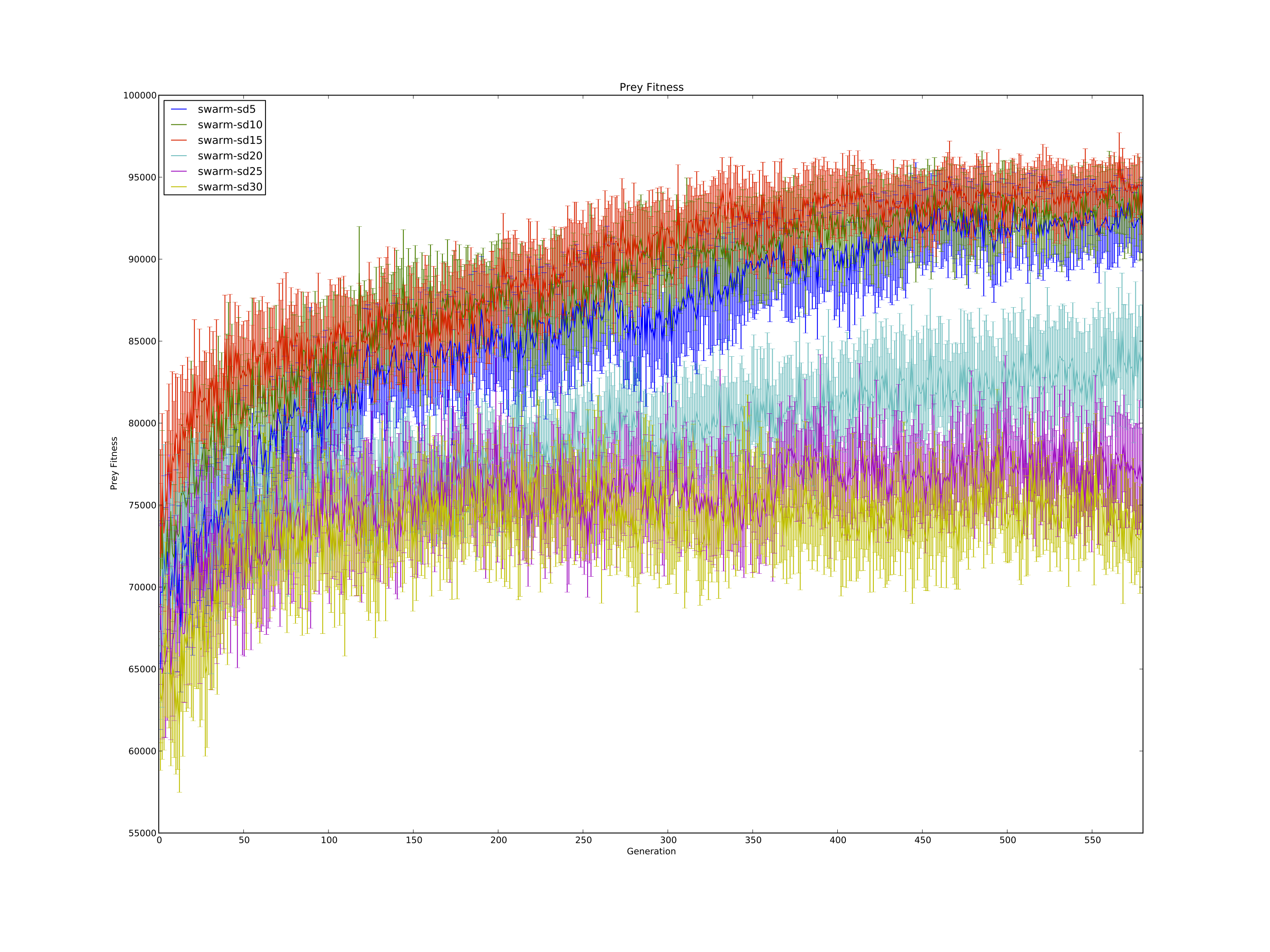
Here's one graph from the end product.
Required packages
Along with the pandas package, the glob package is extremely useful for aggregating folders and files into a single list so they can be iterated over.
Reading data with pandas
glob.glob(str) aggregates all of the files and folders matching a given *nix directory expression.
For example, say experiment-data-directory contains 4 other directories: treatment1, treatment2, treatment3, and treatment 4. It will return a list of the directories in string format.
Similarly, glob.glob(folder + "/*.csv") will return a list of all .csv files in the given directory.
Finally, line 13 stores all of the pandas DataFrames read in by the pandas read_csv(str) function. read_csv(str) is a powerful function that will take care of reading and parsing your csv files into DataFrames. Make sure to have your column titles at the top of each csv file!
Thus, dataLists maps "treatment1", "treatment2", "treatment3", "treatment4" to their corresponding list of DataFrames, with each DataFrame containing the data of a single run. More on how powerful DataFrames are below!
Statistics with pandas
This bit of code iterates over each treatment.
And here's where we see the real power of pandas DataFrames.
Line 21 merges the list of DataFrames into a single DataFrame containing every run's data for that treatment.
Line 22 makes it so the run data is grouped on a per-data-column basis instead of a per-run basis.
Line 23 sorts the column names in ascending order. This is purely for aesthetic purposes.
Lastly, line 24 groups all of the replicate run data together by column.
Here's an example of how this works in practice:
By storing the data this way in pandas DataFrames, you can do all kinds of powerful operations on the data on a per-DataFrame basis. In lines 26 and 27, I compute the mean and standard error of the mean of every column (over an arbitrary number of replicates) for every treatment with just a couple lines.
DataFrames have all kinds of built-in functions to perform standard operations on them en masse: add(), sub(), mul(), div(), mean(), std(), etc. The full list is located at: http://pandas.pydata.org/pandas-docs/dev/generated/pandas.DataFrame.html
Plotting pandas data with matplotlib
The code below assumes you have a "generation" column that your data is plotted over. If you use another x-axis, it is easy enough to replace "generation" with whatever you named your x-axis.
You can access each column individually by indexing it with the name of the column you want, e.g. dataframe["column_name"]. Since DataFrames store each column's data as a list, it doesn't even take any extra work to pass the data to matplotlib to plot it.
Tags

Dr. Randal S. Olson
AI Researcher & Builder · Co-Founder at Wyrd Studios
I turn ambitious AI ideas into business wins, bridging the gap between technical promise and real-world impact.